
 Add to Chrome
Check the day from any tab
Open the side panel while reading mail, reviewing a document, or planning from a project board.
Calendar Chrome extension
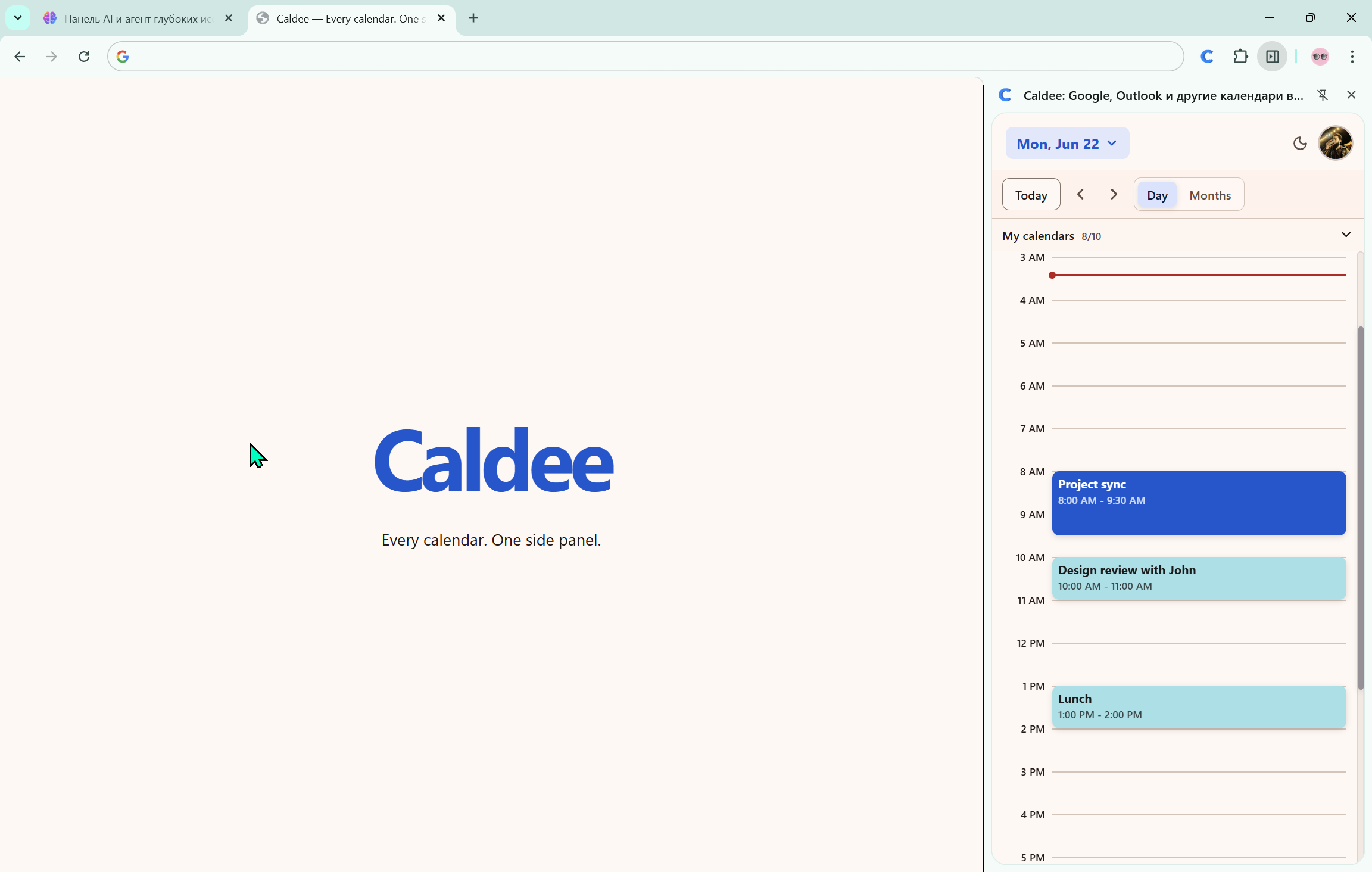
Caldee turns Chrome's side panel into a practical calendar workspace. Keep Google Calendar, Outlook, iCloud, Fastmail, shared calendars, and meeting links beside the page where work is already happening.
Works with the calendars you already use
Connect the calendar providers that already run your day, then manage schedules and meeting links from the same Chrome side panel.
 Google
 Outlook
 iCloud
 Fastmail
 Nextcloud
 Yandex
 Zoom
ZoomWhy a side panel
Most calendar workflows begin somewhere outside the calendar: an email thread, a document, a support ticket, a CRM record, or a project page. A normal calendar tab pulls you away from that context. Caldee keeps the schedule in Chrome's side panel so you can check availability, create the event, and return to the same page without rebuilding your focus.
The extension is designed for people who use more than one calendar source. Work meetings may live in Outlook, personal plans may live in iCloud, and project deadlines may live in Google Calendar. Caldee keeps those sources visible together while still letting each calendar stay recognizable and controllable.
Open the side panel while reading mail, reviewing a document, or planning from a project board.
Choose the calendar, add guests, set details, and keep the work page visible beside the form.
Use calendar visibility controls so personal, team, client, and shared schedules do not become one noisy list.
Made for mixed calendars
Caldee is not another single-provider shortcut. It is a side panel for people whose day is split across accounts and meeting services. You can keep the calendar view close while comparing availability, moving between accounts, and adding a video room before the invitation goes out.
Use the same side panel for work, personal, shared, and client calendars instead of opening separate tabs.
Attach Google Meet, Microsoft Teams, or Zoom while creating the event instead of doing a second setup pass.
Caldee works in the side panel and does not ask to read the websites you visit.
Best fit
A calendar Chrome extension is most useful when it removes a small interruption that happens many times a day. Caldee is built for the repeated scheduling moments: checking whether a call fits, deciding which calendar should hold the event, keeping personal plans visible next to work, and adding the meeting room before the context disappears.
Coordinate client calls, delivery windows, and personal commitments without leaving the page you are using.
Compare calendars while reviewing messages, tasks, and docs where scheduling decisions are made.
Create meetings with the right video provider and keep shared schedules visible during browser work.
Extension checklist
A useful calendar extension should reduce the number of browser jumps, not add another place to maintain. Caldee keeps the important actions in one flow: see the schedule, choose the right calendar, create the event, invite guests, and attach the video call. That makes it different from a simple date checker or a shortcut that only opens another tab.
It also matters that the extension fits mixed-calendar work. If your workday includes Google Calendar, Outlook, iCloud, shared accounts, and different meeting providers, the best extension is the one that helps compare those schedules before the invitation is sent.
The side panel is a working calendar surface, not only a button that opens a full calendar page.
Small checks, quick edits, and meeting setup stay close enough to use many times per day.
Calendar sources stay visible and recognizable, so scheduling decisions are easier to trust.
Privacy by permission
Caldee works in Chrome's side panel and does not request permission to read the websites you visit. It connects only to the Caldee service and the calendar accounts you choose.
Calendar guides