
 Add to Chrome
Check availability while reading
Keep your Google Calendar visible next to an email, proposal, issue, or shared document.
Google Calendar for Chrome
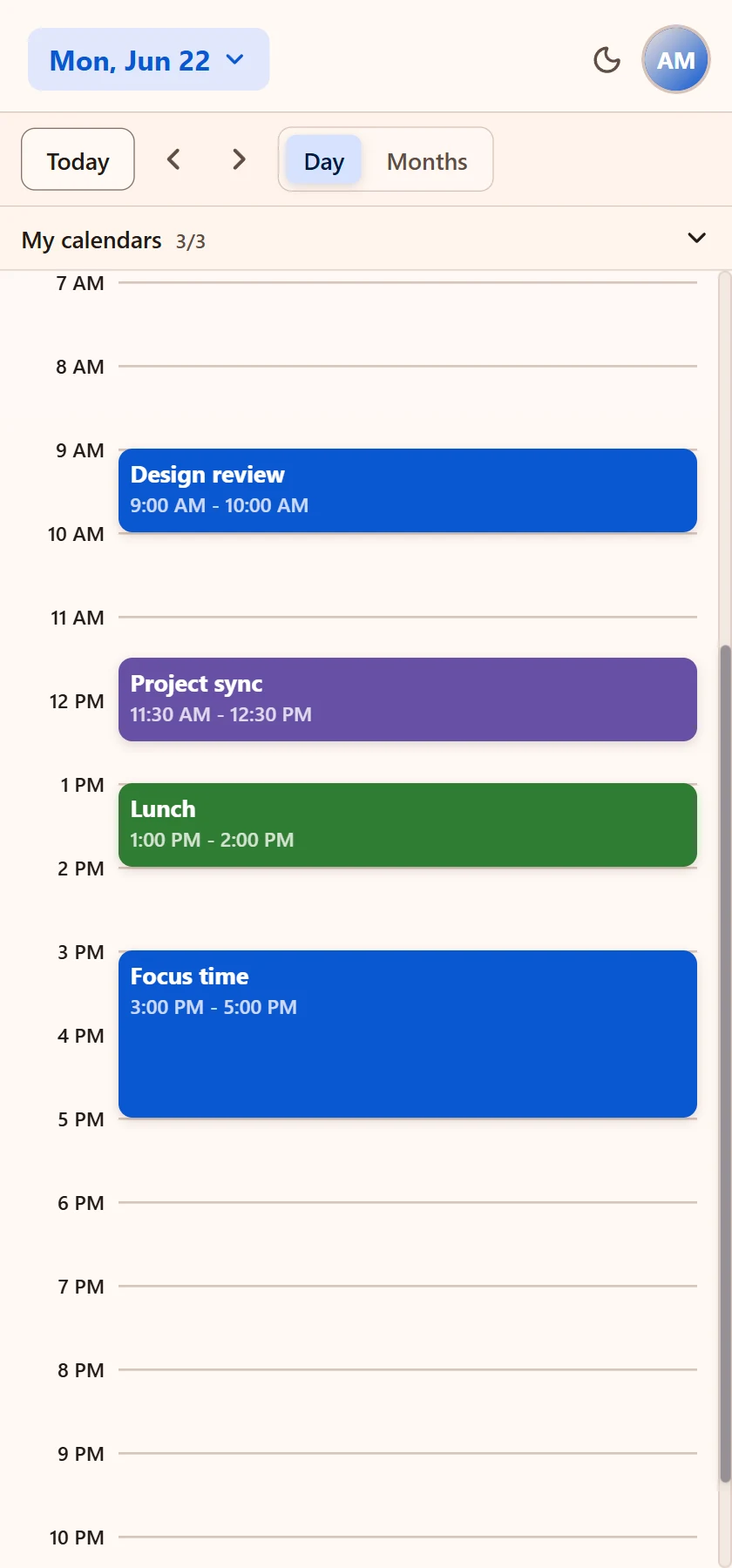
Caldee keeps Google Calendar close to the page you are using. View your day, create events, invite guests, and add meeting links from Chrome's side panel without opening a separate calendar tab.
Works with the calendars you already use
Connect the calendar providers that already run your day, then manage schedules and meeting links from the same Chrome side panel.
 Google
 Outlook
 iCloud
 Fastmail
 Nextcloud
 Yandex
 Zoom
ZoomGoogle Calendar workflow
Google Calendar is often the source of truth for work and personal planning, but the need to schedule usually starts in another tab. Caldee puts the calendar in Chrome's side panel so the message, task, or document stays visible while you decide what time works.
This page is for users who want faster Google Calendar access in Chrome without turning every scheduling task into a full tab switch. Caldee gives the day view, event editor, calendar choice, guest fields, and meeting setup a place next to the browser work that triggered the event.
Keep your Google Calendar visible next to an email, proposal, issue, or shared document.
Use the details in the current tab while choosing the time, guests, calendar, reminders, and description.
Use a compact calendar workspace without losing the page that caused the scheduling decision.
Beyond one calendar
Many people use Google Calendar for one part of life and another provider for another part. Caldee is built around that reality. A Google Calendar event may need to fit around an Outlook meeting, an iCloud appointment, or a shared project calendar. The side panel makes that comparison part of the scheduling flow.
Keep Google Calendar beside personal and shared calendars so availability decisions are clearer.
Use colors and visibility controls so connected calendars stay understandable instead of blending together.
Add Google Meet or another supported meeting provider while the event is being created.
Privacy posture
Caldee is focused on calendar work, not reading the web pages you visit. It connects to the Caldee service and the calendar accounts you choose. That keeps the extension's purpose narrow: show your day, help create events, and keep meetings close to the work already happening in Chrome.
Caldee does not request permission to read the sites you visit while using Chrome.
Connect the providers that matter to your schedule and leave the rest out.
The side panel is designed for frequent scheduling checks, not a one-off calendar lookup.
Google Calendar use cases
The side panel is strongest when the current tab already contains the reason for the event. A client asks for a follow-up, a team document needs a review meeting, or a project board has a deadline that needs to become an event. Caldee lets Google Calendar stay visible while those details are still on screen.
It also helps when Google Calendar is only one part of the schedule. You can keep work, personal, and shared calendars close enough to compare, then create the event in the calendar that actually owns the commitment.
Check the day and create the next call while the message thread is still visible.
Turn a milestone or review window into a calendar event without leaving the planning page.
Compare work meetings with personal plans before offering a time from Google Calendar.
Privacy by permission
Caldee works in Chrome's side panel and does not request permission to read the websites you visit. It connects only to the Caldee service and the calendar accounts you choose.
Calendar guides